Devices: Mac, iPhone, iPad, Apple Watch and web
You have one Saelyx account: your memory, notes, knowledge and files follow you from device to device with the same sign-in. What changes is what each device can do. Minimum requirements are macOS 13, iOS 17 and watchOS 11; how to install each one is in Install and update.
Note
The apps and the web account are still partly in Spanish. This page names menus and buttons in English; if you see the Spanish original, it is the same one.
What each device does
| Feature | Mac | iPhone and iPad | Web |
|---|---|---|---|
| Talk by voice | Yes | Yes | No |
| Written chat | Yes | Yes | Yes |
| See your screen or camera (Pro) | Yes | Yes | — |
| Dictation with the 🌐 key | Yes | — | — |
| Saelyx keyboard and Whisper Mode | — | Yes | — |
| Meeting Mode and minutes (Pro) | Yes | Yes | View and edit minutes |
| Memory | Yes | Yes | Yes |
| Notes | Yes | Yes | Yes |
| Knowledge base | Yes | Yes | Yes |
| Reminders and connected calendar (Pro) | Yes | Yes | Yes |
| Odoo and Jira (Pro) | Yes | Yes | — |
| Mac apps by voice | Yes | — | — |
| Remote | Receives | Controls | — |
The Apple Watch has its own section further down. What each plan includes is in Account and plans.
Mac
Saelyx has a main window with a sidebar (Home, Chat, Sessions, Dictation, Notes, Meetings, Files, Terminal and more) and a menu in the menu bar. Only the Mac has dictation with the 🌐 key (Dictation and keyboard), voice control of Office, mail, Teams, the terminal and the code editor (Working in your Mac apps), and the video-call audio in Meeting Mode, with the screen recording permission.
Global shortcuts: ⌘⇧S starts or stops the session, ⌘⇧M mutes the microphone, ⌘⇧P pauses screen capture and ⌘⇧V switches voice.
Share with Saelyx. In any app, the system Share menu includes Saelyx. Whatever you share (files, images, a link or text) reaches Saelyx just as if you had attached it with the “+”.
iPhone and iPad
On the iPhone there are two tabs: “Saelyx” (the conversation) and “More”. “More” groups Conversation (Chat, Meetings, Reminders, Dictations), Your Stuff (Memory, Notes, Images, Files), Power (Remote, Terminal, Integrations) and Account. On the iPad, navigation is a fixed sidebar, without the Integrations section: Odoo and Jira are connected from the iPhone or the Mac.
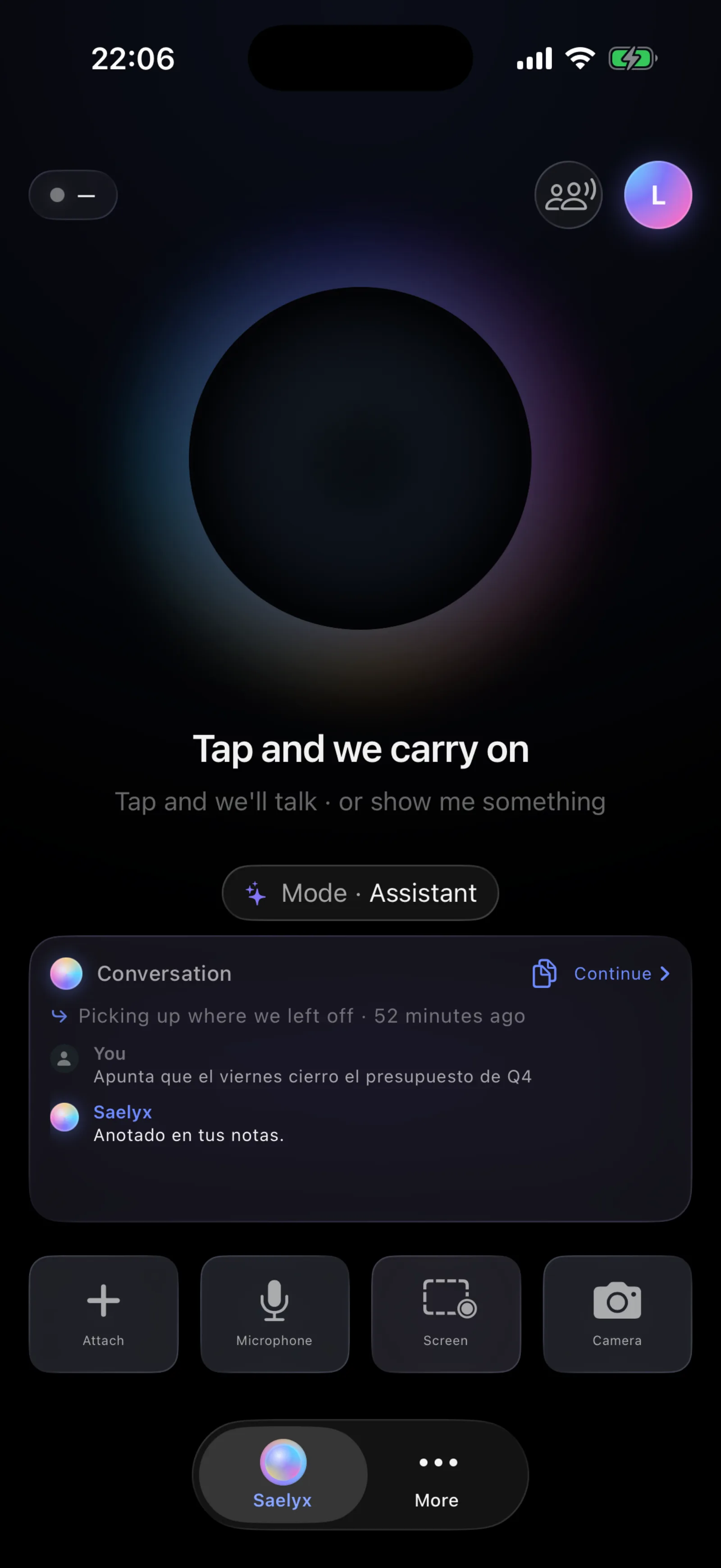
- Screen off (iPhone). The conversation carries on with the screen off or in another app. On the lock screen and in the Dynamic Island you get buttons to mute, resume and hang up.
- Shortcuts (iPhone). Start dictating with Siri, with Shortcuts or with the Action button, or with the “Quick Dictation” widget.
- Typing in other apps. iOS does not let one app type into another: you dictate with Whisper Mode and the text comes out through the Saelyx keyboard (keep tapping the 🌐 globe until you reach it, then tap “Insert”).
- Meetings. The iPhone and iPad listen through their own microphone only, and the agent's voice stays silent while it lasts.
Apple Watch
It talks to the same agent and the same voice as your iPhone. Replies are one or two sentences, read on the screen. You can ask it to check your memory and knowledge, jot something down, set a reminder or tell you what is on your calendar.
Note
The watch needs your iPhone nearby the whole time; without it, it does not work.
To activate it:
- From the iPhone. Open Saelyx on the iPhone once and the watch activates itself.
- With a code. On the iPhone go to More → Your Account → Pair Apple Watch → Generate Code; on the watch open Saelyx, tap “With a Code” and type the 6 digits. The code is single-use and expires after 5 minutes.
The voice volume is set with the Digital Crown. If something goes wrong, see Troubleshooting.
Remote: your iPhone controls your Mac
Your iPhone can ask Saelyx to open a file on your Mac, list a folder, take a capture or run a command in the Mac's Terminal.
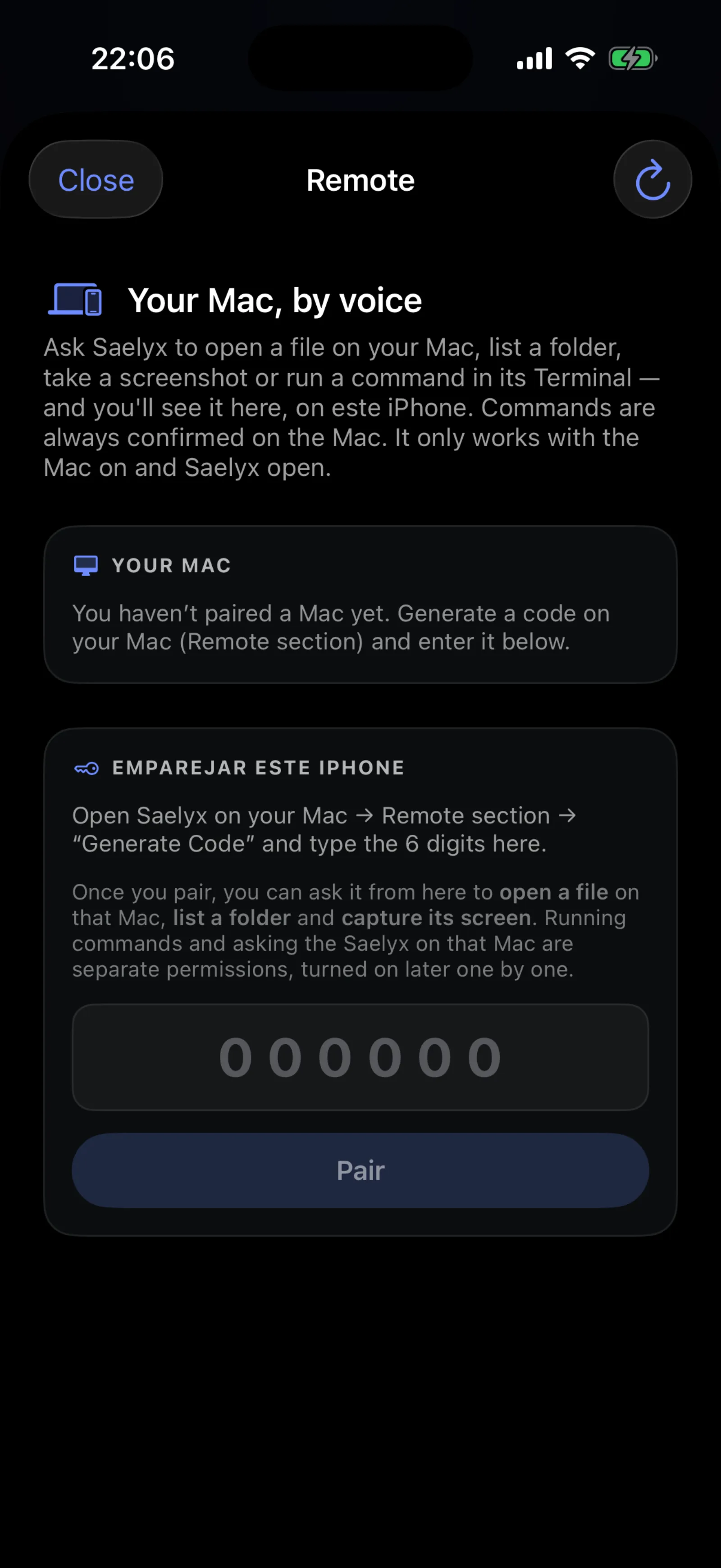
- On the Mac, open the Remote section and click “Generate pairing code”. It expires after 5 minutes.
- On the iPhone, open More → Remote (on the iPad, Remote in the sidebar) and enter the 6 digits.
- To undo it, use “Unpair” on either device.
Careful
Terminal commands are always confirmed on the Mac. Running commands and asking the Mac's Saelyx are separate permissions, switched on one by one.
Remote only works with the Mac on and Saelyx open.
Web
At saelyx.ai you get your account and a text chat from any browser (also Windows, Linux or Chromebook). There is no voice on the web. The panel has three groups: Your Saelyx (Home, Chat, Notes, Profile, Usage, Knowledge, Memory, Skills, Dictionary, Reminders, Preferences, Sessions, Meetings, Files), Connections (Devices, Calendars, Repository, Sending, Connectors) and Account (Billing, Security, Data).
Sessions and devices on your account
- Account → Devices lists the devices signed in, with platform and version. “Revoke” removes that device from the list; ones that go unused are removed automatically after 180 days.
- Account → Security → Sign out of all sessions signs out everywhere at once.
- Account → Sessions is your dictation history for the last 90 days, not a list of sign-ins.
What travels and what stays on each device: Privacy and your data.
Reviewed on 29 Oct 2026 · Saelyx for Mac 0.10.196 · iPhone 1.1.40