Connectors: Odoo, Jira, calendar and the Claude connector
A connector lets Saelyx work with one of your tools without you opening it. You connect it once, from the Mac or the iPhone, and then ask for things by voice or chat. What it reads, it reads without asking; what it writes goes through a confirmation from you (the one exception is marking an Odoo notification as read).
Note
The Mac app and the web account are still partly in Spanish. This guide names settings in English; if you see the Spanish original, it's the same setting.
Overview
| Connector | What it reads | What it writes (with confirmation) | Where you connect it | Plan or access |
|---|---|---|---|---|
| Odoo | Inbox and mentions, tasks, opportunities, tickets, contacts, quotes, projects and milestones, hours and planning, org chart | Reply in the chatter, log hours, create a task | Mac: Integrations. iPhone: More → Integrations | Pro |
| Jira Cloud | Inbox, issues and searches | Comment on and change the status of an issue | Same as Odoo | Pro |
| Google Calendar and Outlook | Your events: what you have today, tomorrow or this week, and what's next | Nothing: it's read-only | Mac: Settings → Account → Calendars. iPhone: More → Your account → Calendars. Web: Account → Calendars |
Pro |
| Connector for Claude | Minutes, memory, documents, notes, calendar and more, depending on the permissions you give | Nothing | In Claude, with Saelyx's permission screen | Early access |
Connect Odoo
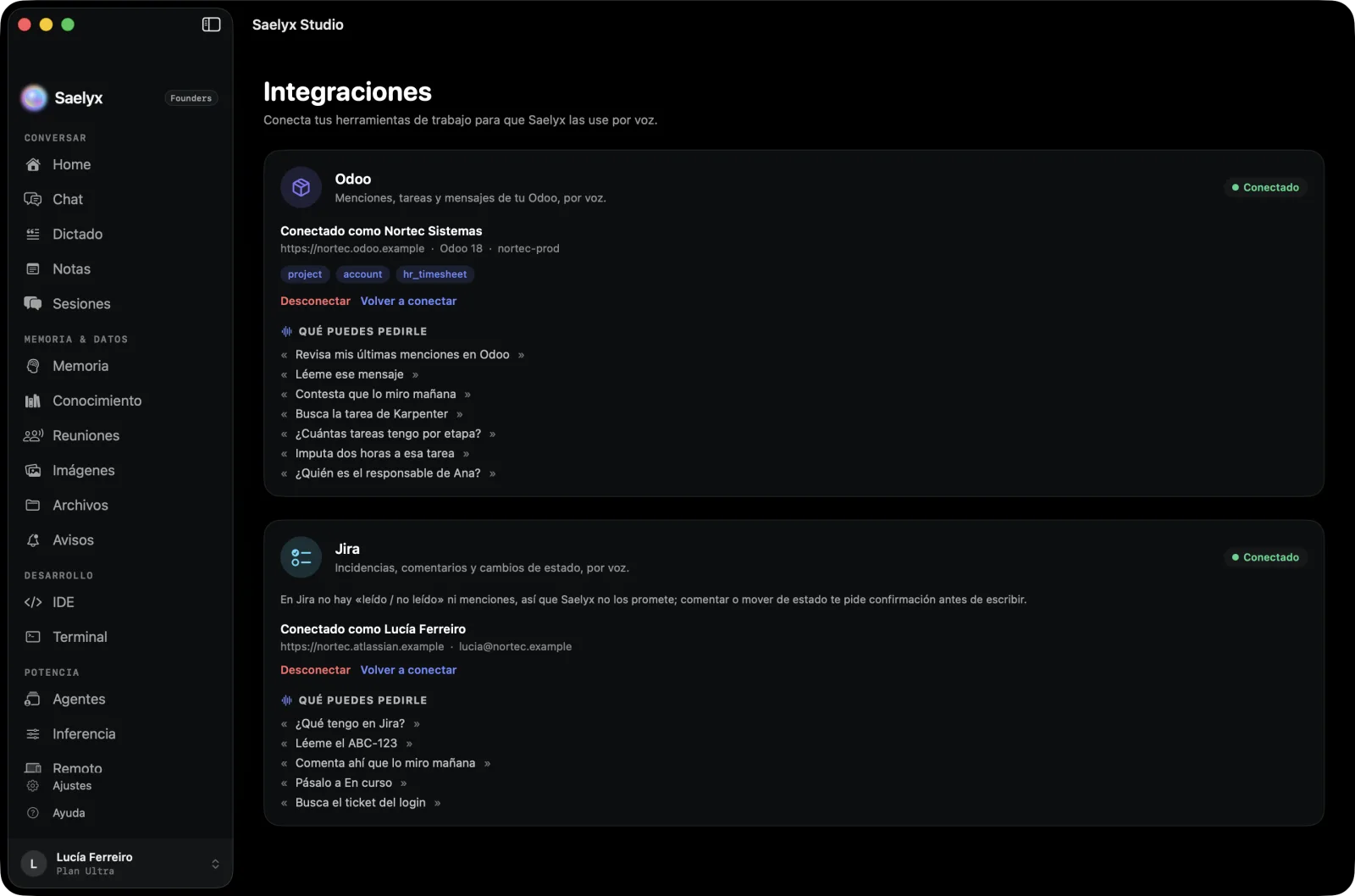
- Open Integrations in the Mac sidebar (Power group) or More → Integrations on iPhone.
- Fill in the four fields. All are required.
| Field | What to enter |
|---|---|
| Server URL (URL del servidor) | https:// and a public server, for example https://your-company.odoo.com. If you paste an interface path (/odoo/…), Saelyx trims it |
| Database (Base de datos) | The name of your database |
| User, by email (Usuario (email)) | Your Odoo user |
| API key (Clave API) | The API key for your user, not your password |
- Tap Connect. Saelyx tests the connection and, if it works, saves it. You'll see "Connected as…".
Connect Jira
Same steps, with three fields: Site URL (URL del sitio, https://your-company.atlassian.net), Your account email (Email de tu cuenta) and the Atlassian API token.
Note
The Odoo key and the Jira token are stored encrypted on the server and never come back to the app. Saelyx only connects to public servers over https, doesn't follow redirects and waits at most 12 seconds for Odoo and 8 for Jira.
What you can ask
- Odoo: "Check my latest mentions", "Read me that message", "Reply that I'll look at it tomorrow", "How many tasks do I have per stage?", "Log two hours on that task."
- Jira: "What do I have in Jira?", "Move it to In progress", "Comment there that I'll look at it tomorrow."
What it writes and how you confirm it
Before writing, Saelyx prepares the action, shows you a card with the exact sentence of what it's about to do and waits for your yes. The confirmation is single-use and expires.
- Hours in Odoo. If what you ask matches several tasks, Saelyx asks which one instead of choosing. Each line allows up to 4 hours and each day up to 10.
- Odoo notifications. Marking a notification as read doesn't ask for confirmation.
- Comments in Jira. In a Jira Service Management project, the comment can be internal or for the customer, and the card tells you who will see it. In a project that isn't of that type, Saelyx doesn't publish "internal" or "customer" comments.
- Jira has no "read" state and no mentions, so Saelyx doesn't promise them.
Careful
A customer comment is seen by the customer. Read the card before you say yes.
Connect your calendar
- Mac:
Settings → Account → Calendars → Connect a calendar. iPhone: More → Your account → Calendars. Web: Account → Calendars. - Choose Microsoft 365 (Outlook) or Google Calendar and authorise in the browser. If you cancel, nothing is connected.
- Ask by voice: "what meetings do I have?" or "what's next?". It also works on Apple Watch.
Saelyx only reads: it doesn't create or edit events and doesn't store the content of your calendar. The calendar on your Mac or iPhone is a different source, with its own system permission (see System permissions). To save and send minutes with your Microsoft account, see Microsoft 365.
Connector for Claude
This is a read-only connector that lets Claude look at your Saelyx data. It is in early access, by invitation. You decide what it can read, box by box, on the permission screen Saelyx shows you when you connect it. The most personal ones (your chat history and asking Saelyx) come unticked. It can't write or delete anything in Saelyx and never receives the raw transcript of a meeting.
The steps to connect it are at Saelyx in Claude; they aren't repeated here. Odoo and Jira, if you have them connected, have their own separate connector, also read-only.
Revoke or disconnect
- Odoo or Jira: open Integrations and tap Disconnect; Saelyx can no longer read or write there.
- Calendar: tap Disconnect on its row. With Google, Saelyx also revokes the access on Google's side.
- Connector for Claude: on the web, Account → Connectors → Remove access. Disconnecting only from Claude doesn't cancel the permissions in Saelyx: remove them here too.
If something fails
| Message (shown in Spanish) | What to do |
|---|---|
| «La dirección del Odoo no es válida: tiene que ser https://tu-odoo.com» (the Odoo address isn't valid) | Check the URL |
| «Esa dirección no es un servidor público» (that address isn't a public server) | Odoo has to be reachable from the internet |
| «Odoo ha rechazado el usuario, la clave API o la base de datos» (Odoo rejected the user, the API key or the database) | Check all three; use the API key, not the password |
| «Tu Odoo no ha respondido a tiempo» (your Odoo didn't respond in time) | Try again |
More fixes in Troubleshooting.
Reviewed on 29 Oct 2026 · Saelyx for Mac 0.10.196 · iPhone 1.1.40